
Help · For care aides
Signing in on a care tablet
Everyone signs in with their own 6-digit PIN. Everything you record is signed with your name, so never use someone else’s PIN or let them use yours.
The first time: set up your PIN
Ask your administrator for a setup code. It is 8 letters and numbers, works once, and runs out after 24 hours.
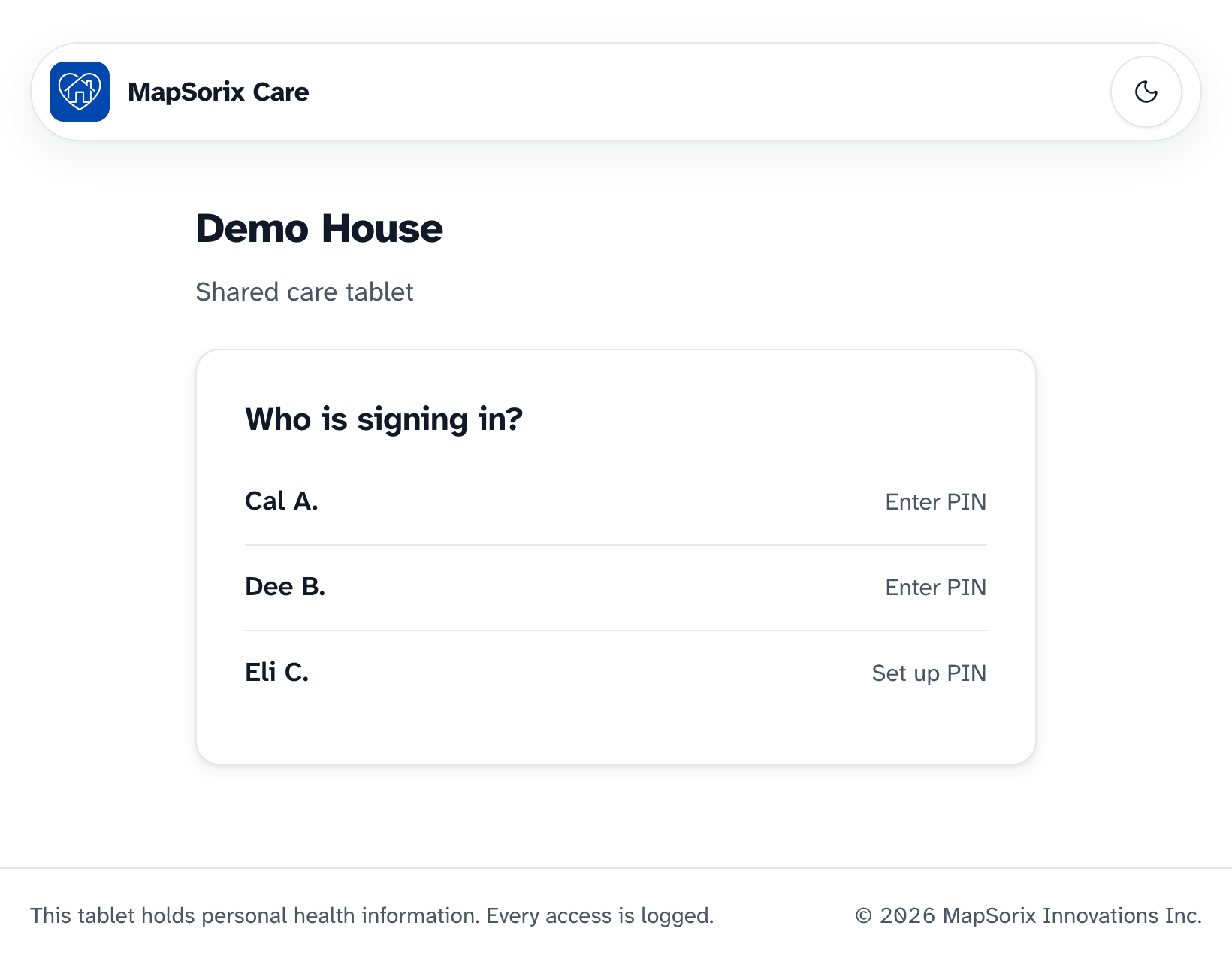
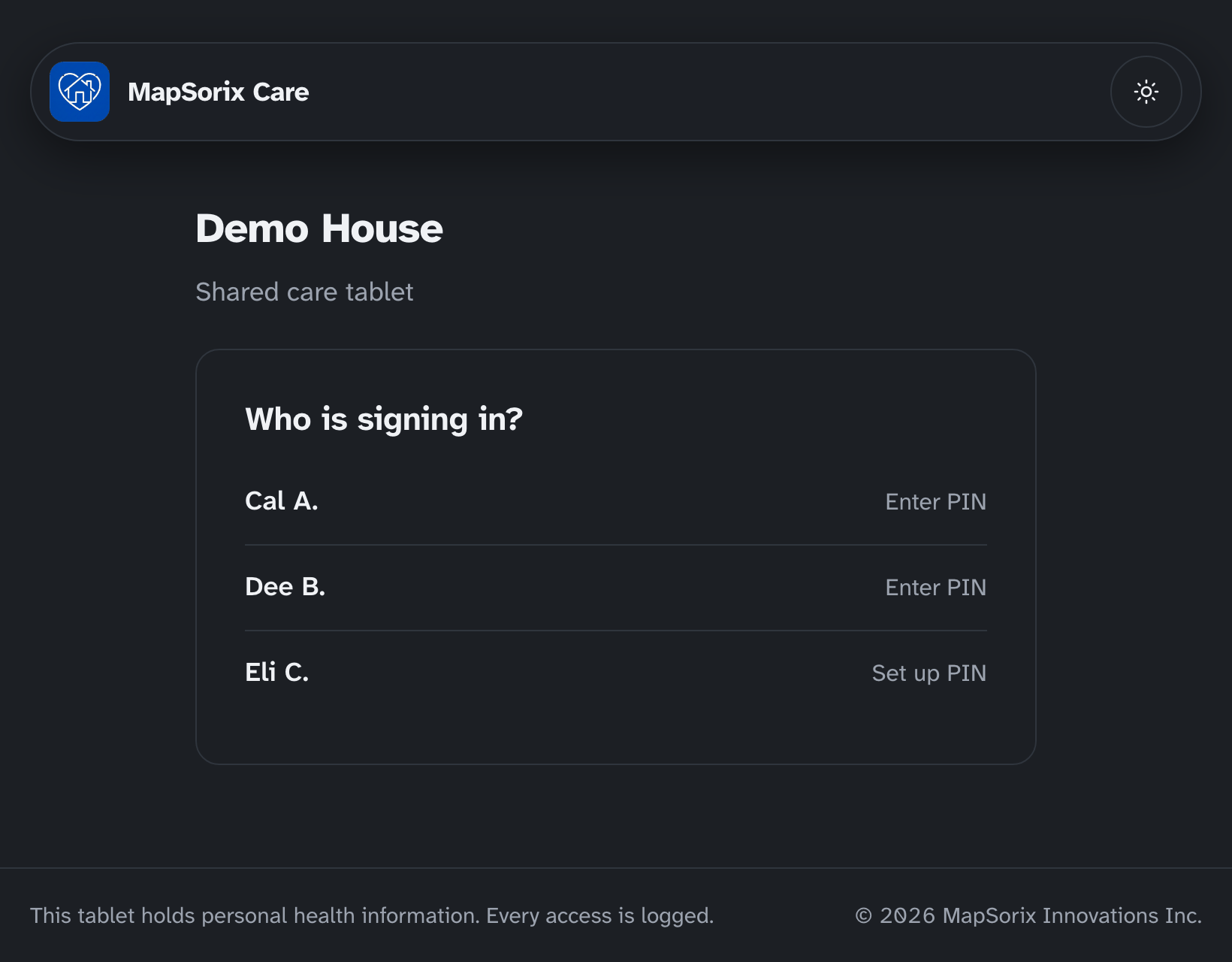
- On the care tablet, under Who is signing in?, tap your name. It says Set up PIN.
- Enter the setup code.
- Choose a 6-digit PIN that only you know and tap Next. MapSorix Care won’t accept the same digit six times, digits in order such as 123456, or a pattern such as 121212.
- Enter the same PIN again and tap Save PIN.
If the setup code is wrong, MapSorix Care marks the code and keeps your PIN. Fix the code and tap Save PIN again. If it still doesn’t work, ask your administrator for a new setup code.
The first time you sign in, and again if its wording changes, MapSorix Care shows the pledge to keep residents’ information private. Read it and tap I agree before you start. If you need to stop, tap Not now — switch user; you’ll be asked again next time.
Every shift
- Tap your name.
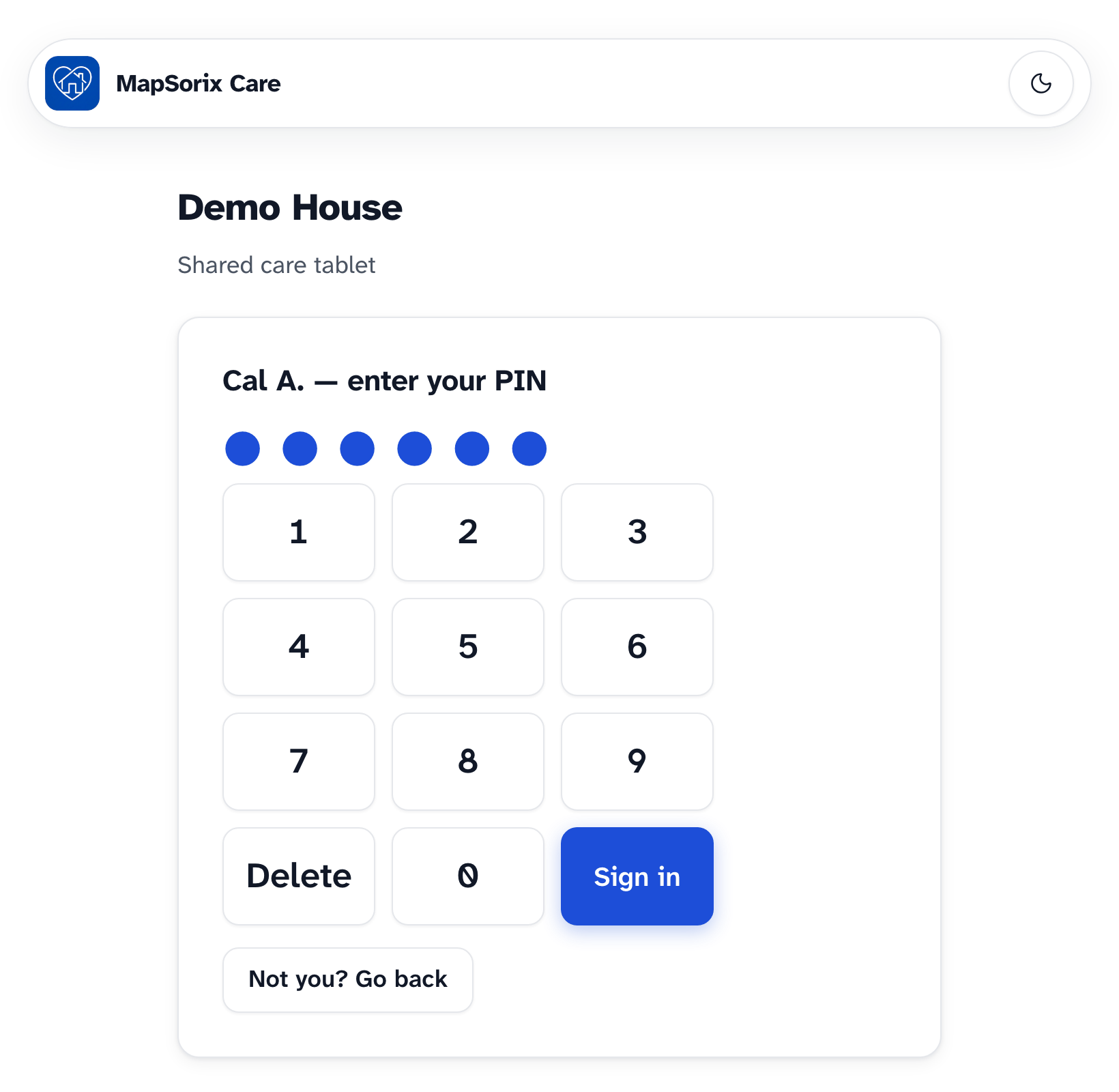
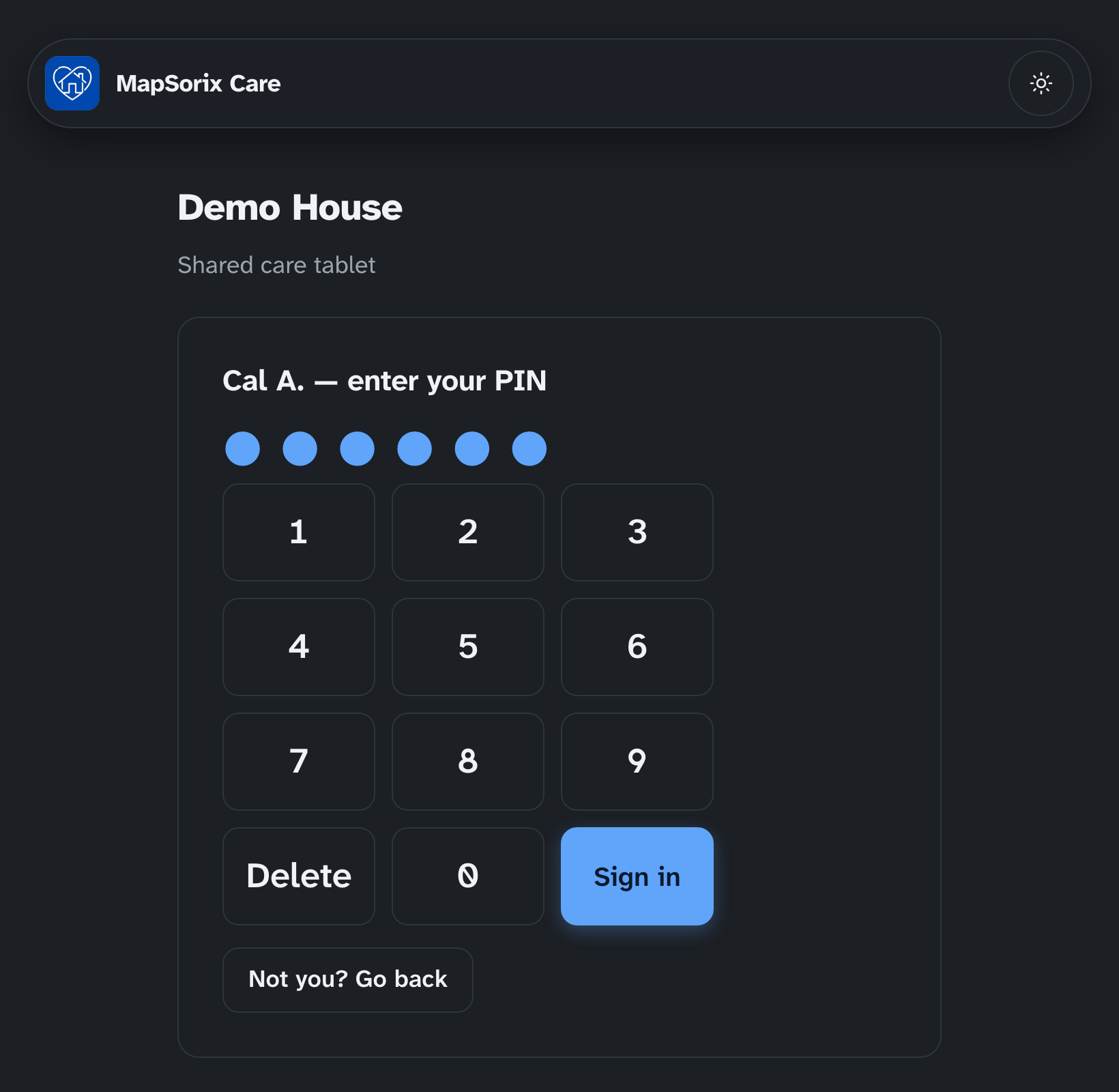
- Enter your PIN and tap Sign in.
- On the Today screen, MapSorix Care asks whether to clock you in. See Clocking in and out.
Signing in needs the internet, because your PIN is checked by MapSorix Care’s server. Once you are signed in, you can keep working if the connection drops. See When the internet drops.
When the screen locks
The tablet locks after 5 minutes without a touch, and whenever you tap your name at the top right and choose Lock screen. Enter your PIN to carry on where you were.
If someone else needs the tablet, tap Someone else? Switch user. MapSorix Care signs you out once your entries are saved, and the next person signs in with their own PIN.
If your PIN doesn’t work
If you forgot your PIN, ask your administrator for a new PIN setup code. Then tap your name, which now says Set up PIN, and choose a new PIN as you did the first time.
- After 5 wrong tries, your PIN is paused for 15 minutes.
- After 10 wrong tries, your PIN is turned off and your administrator is alerted. Ask them for a new setup code.
- On the lock screen, 5 wrong tries sign you out, and you sign in again from your name.
Changing your PIN
Open the menu and choose Change my PIN. If you think someone has seen your PIN, change it straight away.
More help
- Signing in on a care tablet
- The medication pass
- Correcting a mistake
- Writing a care note
- When the internet drops
- Recording vital signs
- Filing an incident report
- Clocking in and out
- Care plans and assessments
- The family portal
- Your pharmacy and the pharmacy portal
- The pharmacy portal, for pharmacies
- Staff, tablets and support access
- Resident billing
- Getting ready for an inspection
All help · Questions: care@mapsorix.com or (306) 400-1800, Monday to Friday, 9 AM to 5 PM Saskatchewan time.